How to Add a Click-to-Call Button to Your WordPress Site
Three ways to add a tap-to-call button in WordPress, from a free link in a button or menu to a call bar that stays on screen on phones.
When someone finds a local business on their phone, the easiest next step is to call. If your number is plain text, they have to copy it, open the phone app and paste it. Many will not bother, and call the next business in the results instead.
A click-to-call button fixes that: one tap, and the phone starts dialling. Here are three ways to add one in WordPress, from a free link you can add in two minutes to a call bar that stays on screen on every page.
How a call link works
A call button is an ordinary link, but instead of a web address it starts with tel: followed by your number:
tel:+15555550142Write the number with a plus sign, your country code and no spaces, so it dials correctly from anywhere. For a number in the United States or Canada, that is +1 and then the ten digits.
On a phone, tapping the link opens the dialler with the number filled in. On a computer it opens a calling app if one is set up, or does nothing, so always show the number itself as well, not only the word “Call”.
Way 1: a call button in a page or post (free)
The block editor that comes with WordPress can do this on its own:
- Open the page and add a Buttons block where you want the button, for example near the top of your home page.
- Type the button text. Using the number itself works well: Call (555) 555-0142.
- Select the button, click the link icon, type
tel:+15555550142with your own number and press Enter. - Update the page and test it on your phone.
Repeat this on your main pages, such as Services and Contact. The downside is that the button scrolls away as people read, and you have to change every button by hand if your number changes.
Way 2: your number in the menu (free)
A number in the menu shows on every page.
- Block themes (Site Editor): open Appearance > Editor, select your navigation, add a Custom Link, and enter
tel:+15555550142as the link and your number as the text. - Classic themes: open Appearance > Menus, use Custom Links, enter the
tel:link and your number, then add it to the menu and save.
On phones many themes fold the menu behind a button, so the number is still one tap further away than it could be.
Way 3: a call bar that stays on screen
On phones, the most reliable option is a bar fixed to the bottom of the screen, with a Call button and usually a Get a quote button. It never scrolls away, so the number is one tap from anywhere on the site.
Our Call & Quote Bar plugin adds that bar to any WordPress theme, and the free version is on its way to WordPress.org. It gives you:
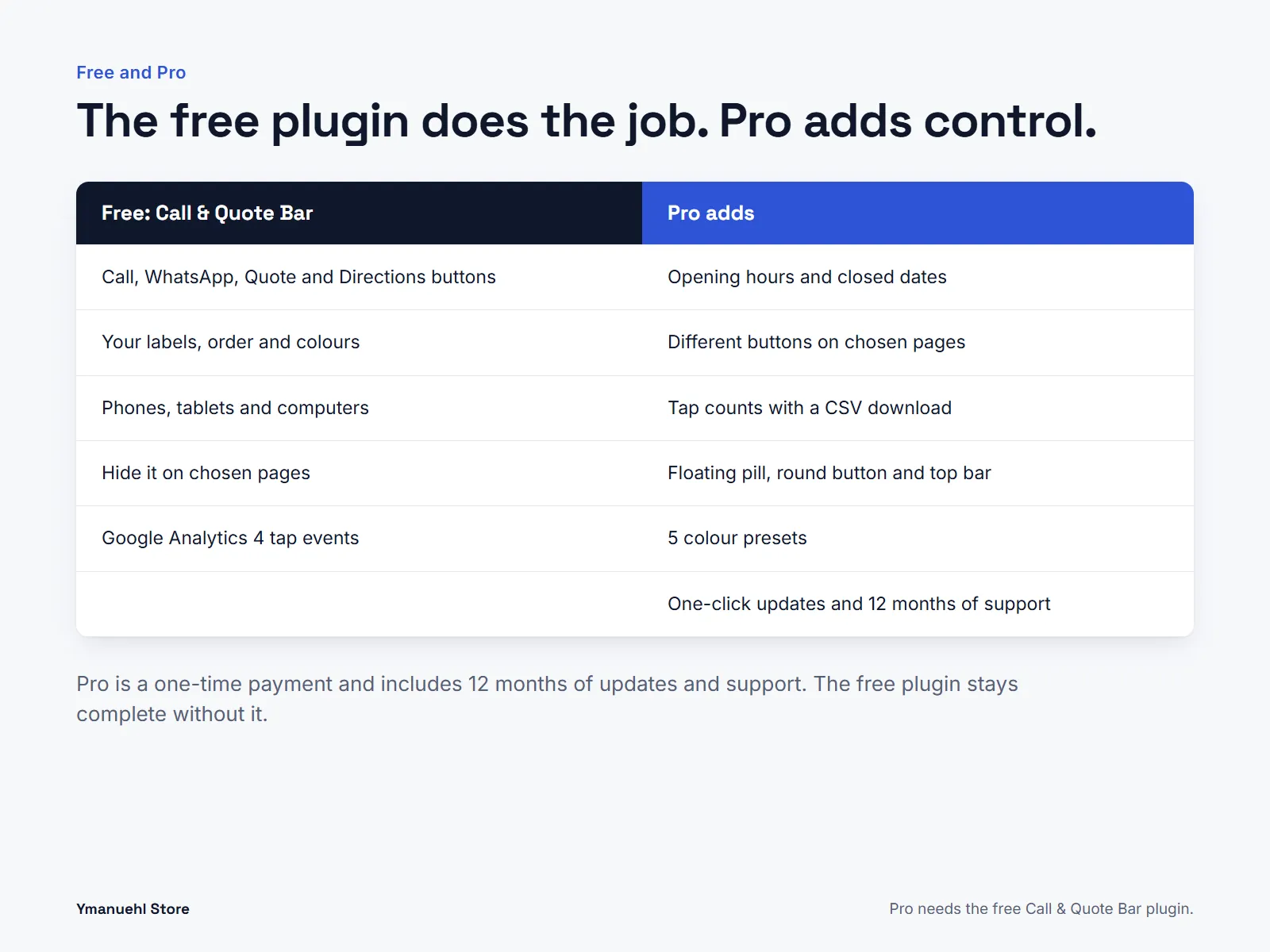
- Up to four buttons: Call, WhatsApp with a ready message, Quote or contact (any page or address) and Directions
- Your own labels, order and colours
- The bar on phones only, or on tablets and computers too
- The option to hide it on pages where you do not need it
- Room made at the bottom of the page, so the bar never covers your content
- If your site uses Google Analytics 4, each tap sent as an event, such as
phone_call, so you can see how many calls your site brings
The plugin itself makes no outside calls, sets no cookies and stores nothing about your visitors.
Tips that apply to every method
- Test on a real phone, with mobile data, not only on your computer.
- Use one number everywhere: on the site, in your Google Business Profile and on your van. Customers and Google both notice when they differ.
- Say when you answer. “We answer 7 am to 7 pm, Monday to Saturday” next to the number saves missed calls and frustration.
- Count the taps. A plain
tel:link added by hand is not counted as an event unless you set one up yourself, so you will not know how many calls your site brings. A plugin that sends tap events to Google Analytics saves you that setup.
Opening hours, chosen pages and tap counts
If you want more control over the bar, Call & Quote Bar Pro adds:
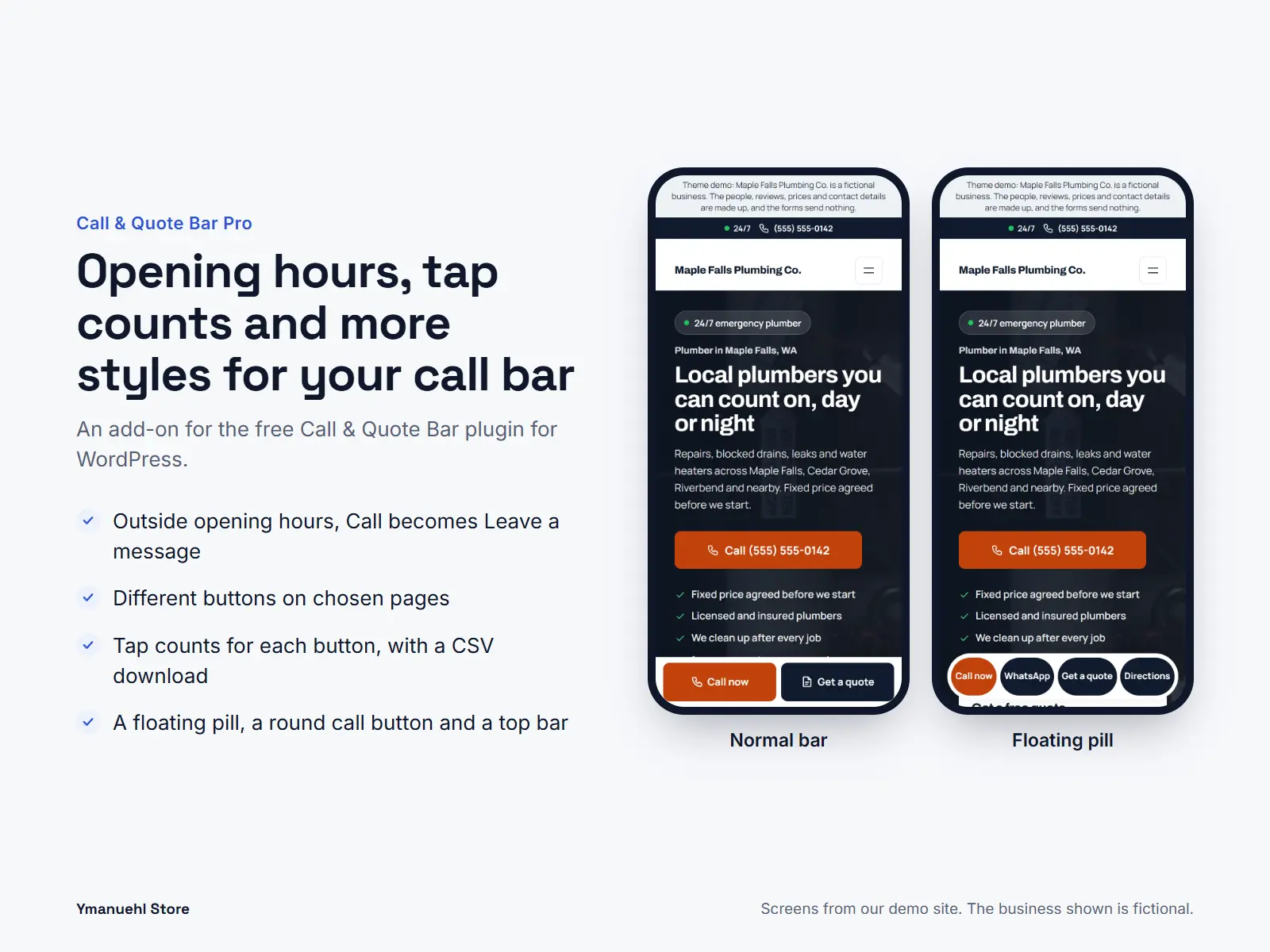
- Opening hours and closed dates. Outside them, Call becomes Leave a message, so nobody rings an empty office.
- Different buttons on chosen pages, for example WhatsApp only on one service page.
- Tap counts for each button, kept inside WordPress, with a CSV download.
- More styles: a floating pill, a round call button and a top bar, plus five colour presets.
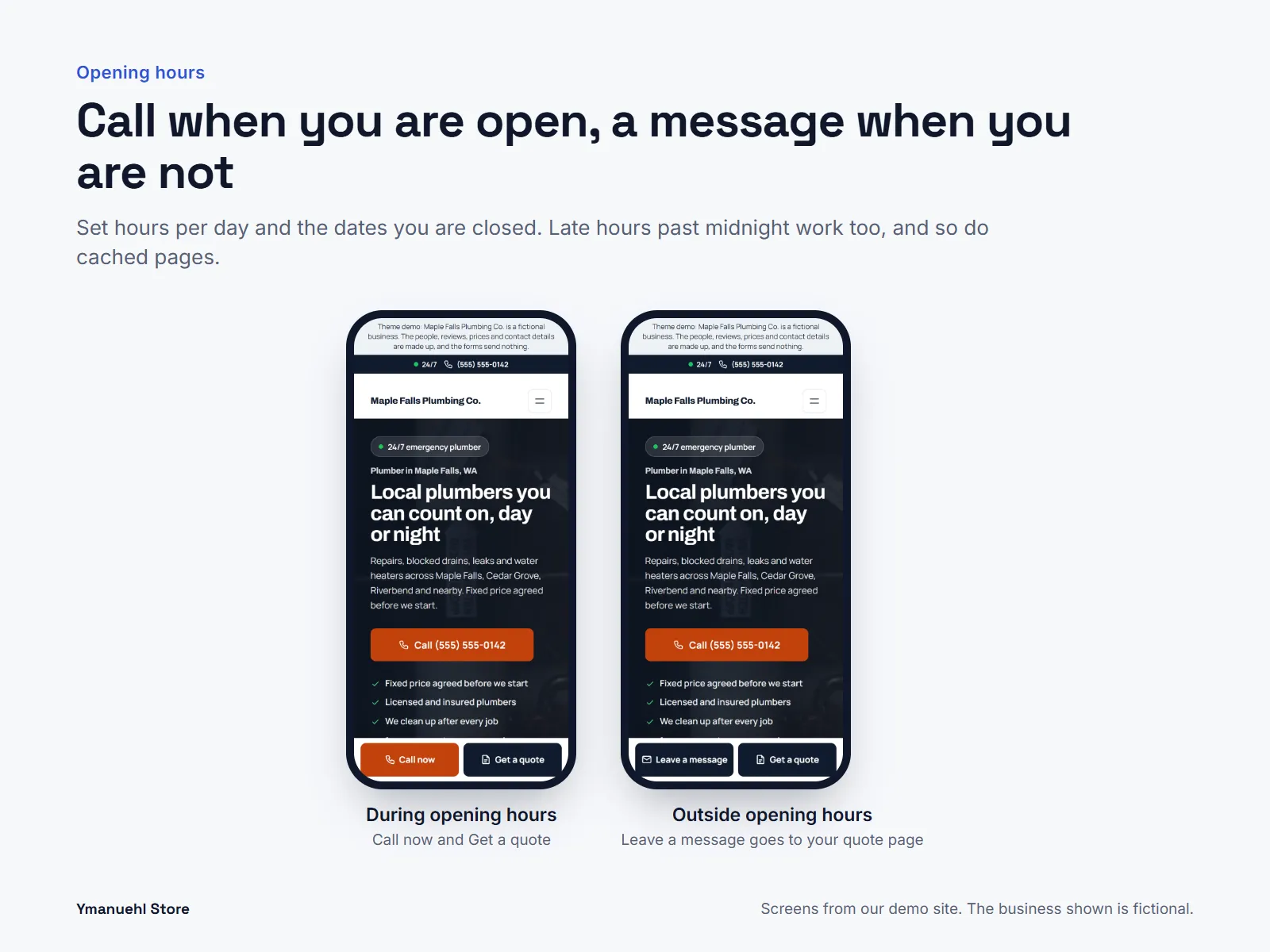
Pro needs the free plugin, and the Pro download includes it. The screens above come from our demo site; the plumbing business shown there is fictional.