Landscaping Website: How to Show Your Gardens and Book Visits
What a landscaping or gardening website needs, from photos of your own gardens and service pages to a free visit form, seasonal work and the areas you cover.
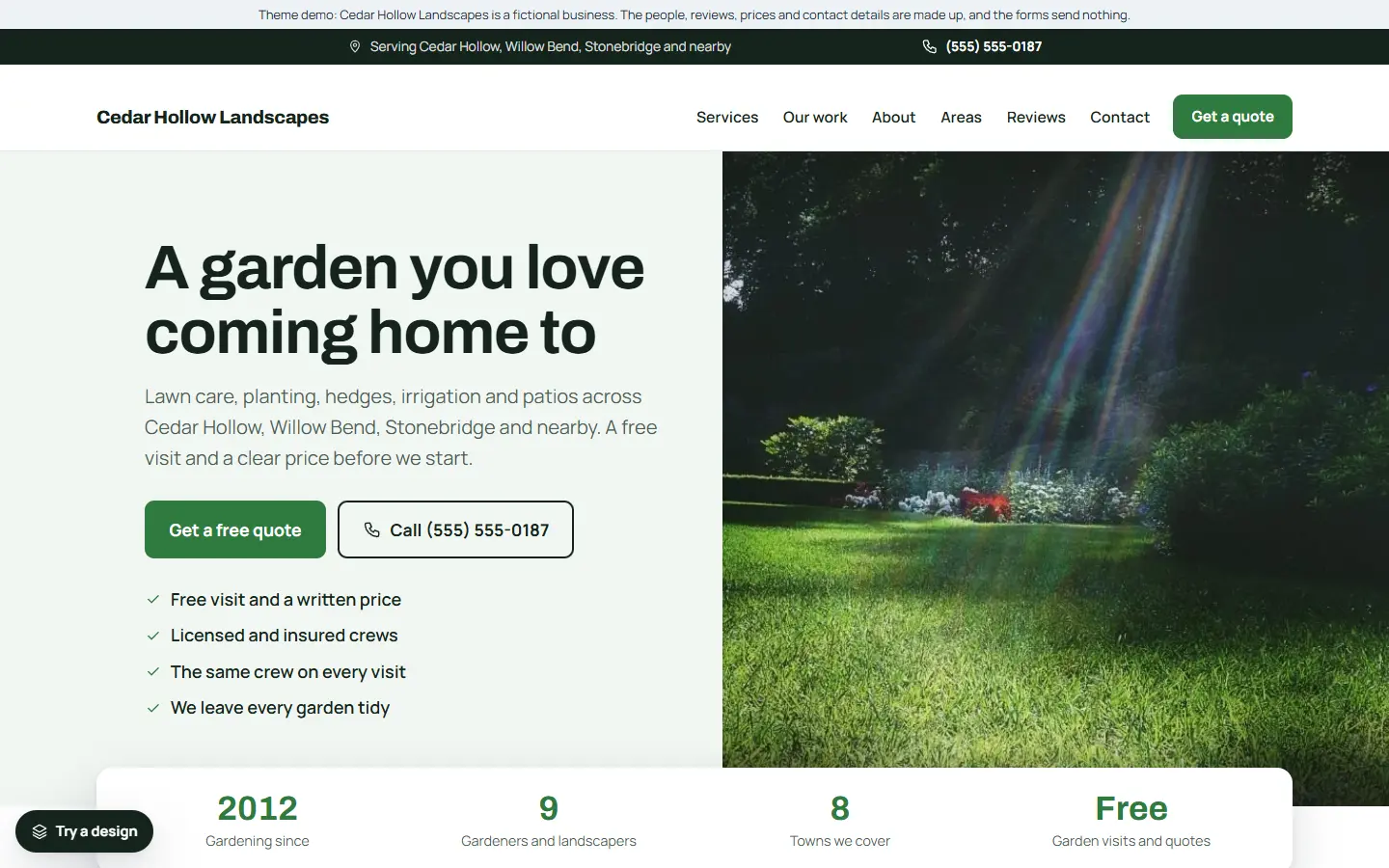
People hire a landscaper because they can picture the garden they want but cannot make it happen themselves. Your website has to show that you can: real gardens you have made or looked after, a clear list of what you do, and an easy way to ask you round.
Here is what a landscaping website should include.
1. Photos of your own gardens
Your work is your best advert. Show real gardens, patios and lawns you have done, ideally before and after, near the top of the home page and on each service page. Take the photos in good light, and only show customers’ gardens if they agree.
2. One page for each service
Give each service its own page:
- Lawn care and mowing
- Garden design and planting
- Hedge and shrub trimming
- Irrigation and sprinklers
- Patios, paths and hardscaping
- Seasonal clean-ups
Say what is included, whether it is a one-off job or a regular visit, and end each page with a button to book a visit or get a quote.
3. A free visit or quote form
Many landscaping jobs need you to see the garden first. If you offer a free visit, make that the main button. Keep the form short: what they want done, roughly how big the garden is, the address, and the best time to call.
4. Regular care and seasons
Lawns and hedges need regular work, and your year has busy seasons. Explain how regular maintenance works, how often you come, and what you do in each season. Short articles such as “When to mow and feed your lawn” are useful to visitors and help them find you.
5. Storm and clean-up work
After storms, people need fallen branches and debris cleared quickly. If you do this, add a short section or call band for it, with your phone number.
6. Service areas and real reviews
List the towns you cover and show reviews from real customers with the job you did. Link to your Google reviews. Never write or copy reviews.
7. A fresh, natural look
Greens, real photos and plenty of space suit a landscaping business far better than a busy, dark design. Make sure the photos are resized, so the site stays quick on a phone.
8. Business details Google can read
Link your Google Business Profile with the same name and phone number, use page titles that say the service and the area (“Garden Design in Springfield | Your Landscapes”), and add structured data with your business type and areas.
Quick checklist
- Photos of your own gardens
- A page for each service
- A free visit or quote form
- Regular care and seasonal work explained
- Storm clean-up, if you offer it
- Service areas and real reviews
- A fresh, natural design that is quick on phones
- Google Business Profile and structured data
Starting from a landscaping template
If you would rather start from a finished site, our landscaping template for the Mainstay theme has this list ready to edit:
- A fresh green design with a short quote form for free garden visits, and requests saved inside WordPress.
- Six service pages: lawn care and mowing, garden design and planting, hedge and shrub trimming, irrigation and sprinklers, patios, paths and hardscaping, and seasonal clean-ups.
- A storm clean-up call band and two articles: when to mow and feed your lawn, and choosing a patio.
- Service areas, sample reviews, opening hours and an about page, ready for your own details.
- One settings page for your business details, which also fills in the structured data Google reads.
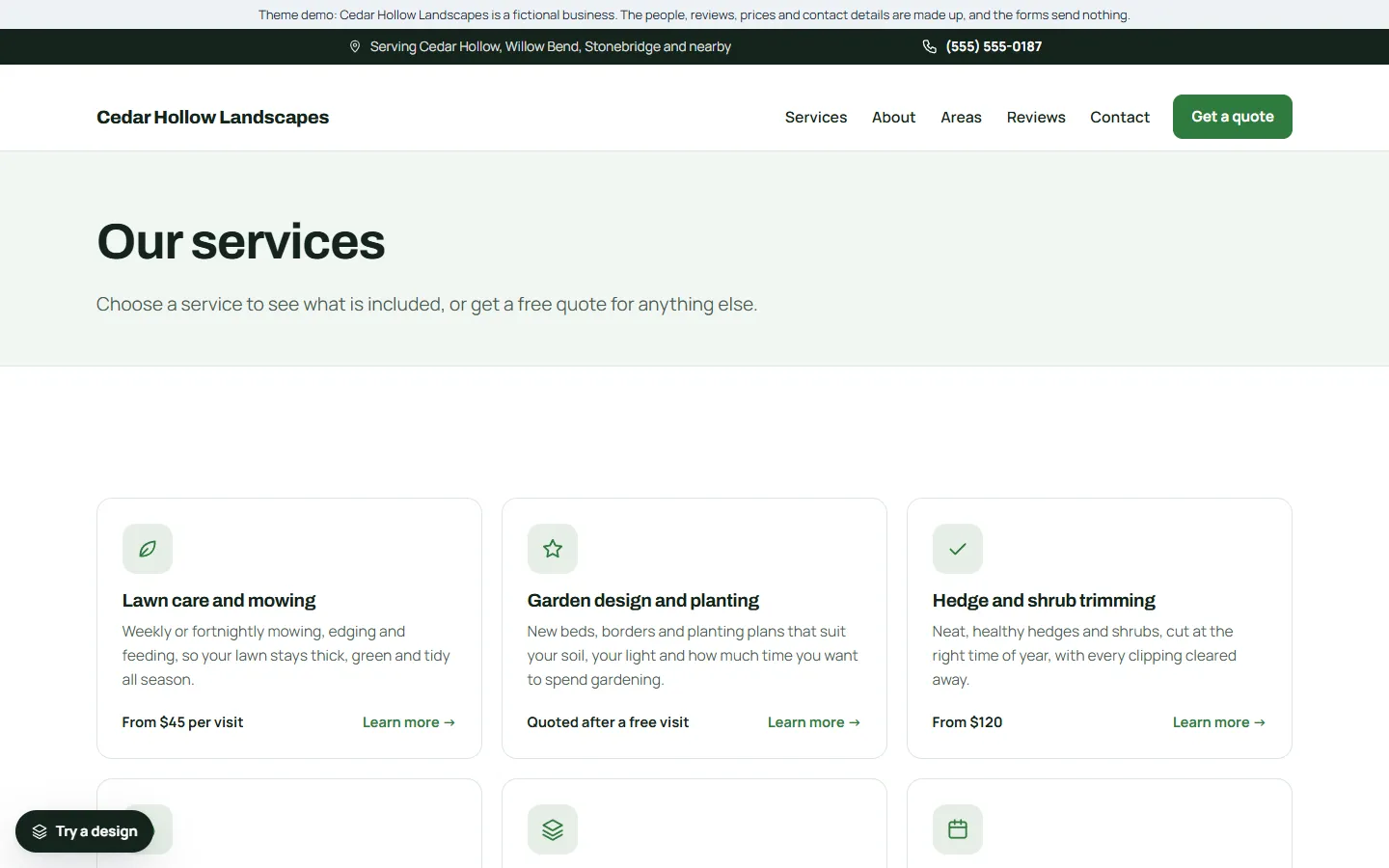
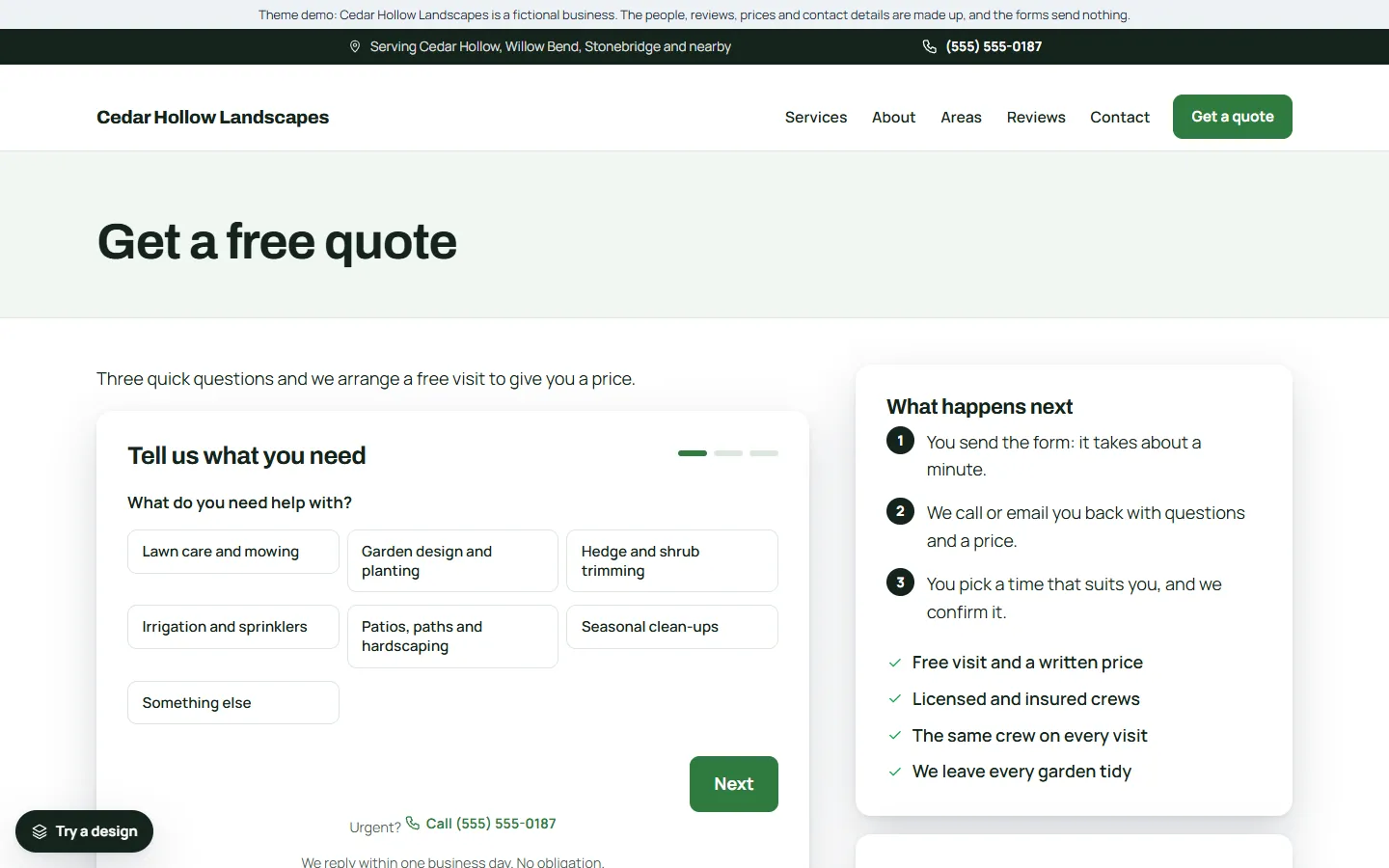
The demo business, Cedar Hollow Landscapes, is made up. You can try the live demo on your phone and read the full setup guide before you buy.